
IPTV Box Malta 4K: How to Set Up MAG and Android Box for Streaming
Introduction
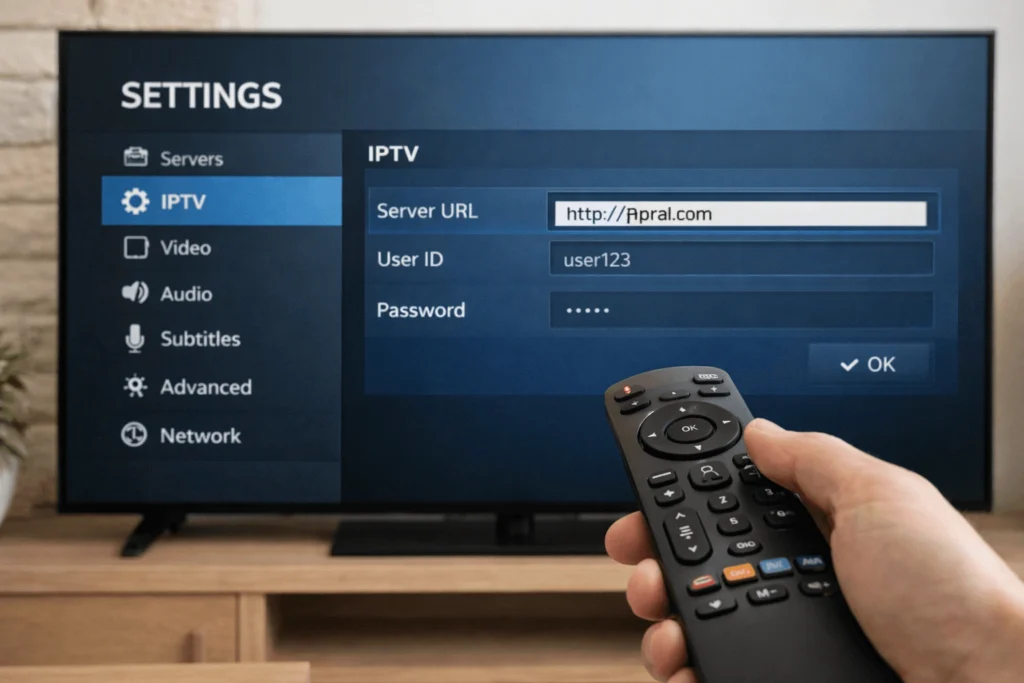
Dedicated IPTV hardware has grown considerably in popularity across Malta in recent years. As households seek greater control over their viewing experience — including access to international channels, live sports, and high-definition content — both MAG boxes and Android TV boxes have become familiar fixtures in living rooms from Valletta to Victoria. Setting up IPTV box Malta 4K correctly, however, requires a clear understanding of the differences between these two device types, the technical requirements for stable high-resolution streaming, and the configuration steps involved for each platform.
This guide provides a practical, educational walkthrough for users looking to get the most from their IPTV hardware setup in Malta.
Understanding the Two Main IPTV Box Types
What Is a MAG Box?
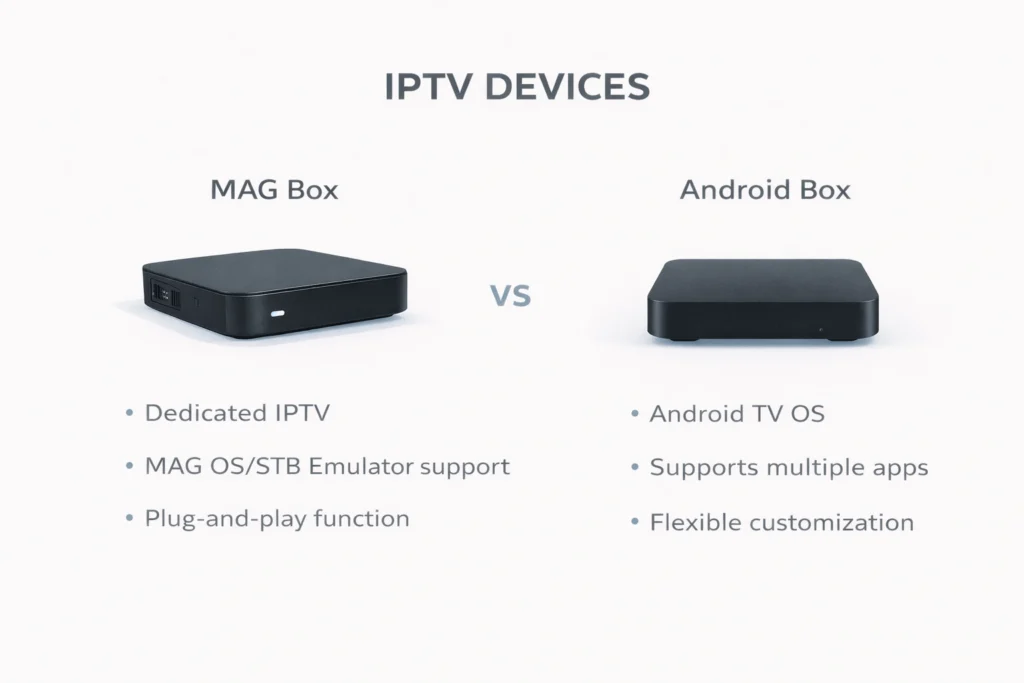
A MAG box is a dedicated IPTV set-top device manufactured primarily by Infomir. Unlike general-purpose media players, MAG boxes are designed exclusively for IPTV delivery. They run a Linux-based operating system and use a built-in portal system — typically the Stalker Middleware portal — to connect to an IPTV service. The interface is clean and straightforward, making MAG devices a popular choice among users who prefer a plug-and-play experience without the need to install or manage applications manually.
MAG boxes are available in several models, with the MAG 322, MAG 420, and MAG 524 among the most commonly used. Higher-end models support 4K UHD output, which is increasingly relevant as IPTV services expand their 4K channel offerings.
What Is an Android TV Box?
An Android TV box runs a full version of the Android operating system, which gives it considerably more flexibility than a MAG device. Users can install applications directly from the Google Play Store or via sideloading, access streaming platforms, run games, and use general apps alongside IPTV functionality. Popular Android box models in Malta include the Nvidia Shield, Xiaomi Mi Box, and various budget options from brands such as H96 and X96.
The key difference is therefore one of simplicity versus versatility. MAG boxes offer a streamlined, IPTV-focused experience, while Android boxes provide a broader multimedia platform that can accommodate multiple uses within a single device.
4K Streaming Requirements for IPTV in Malta
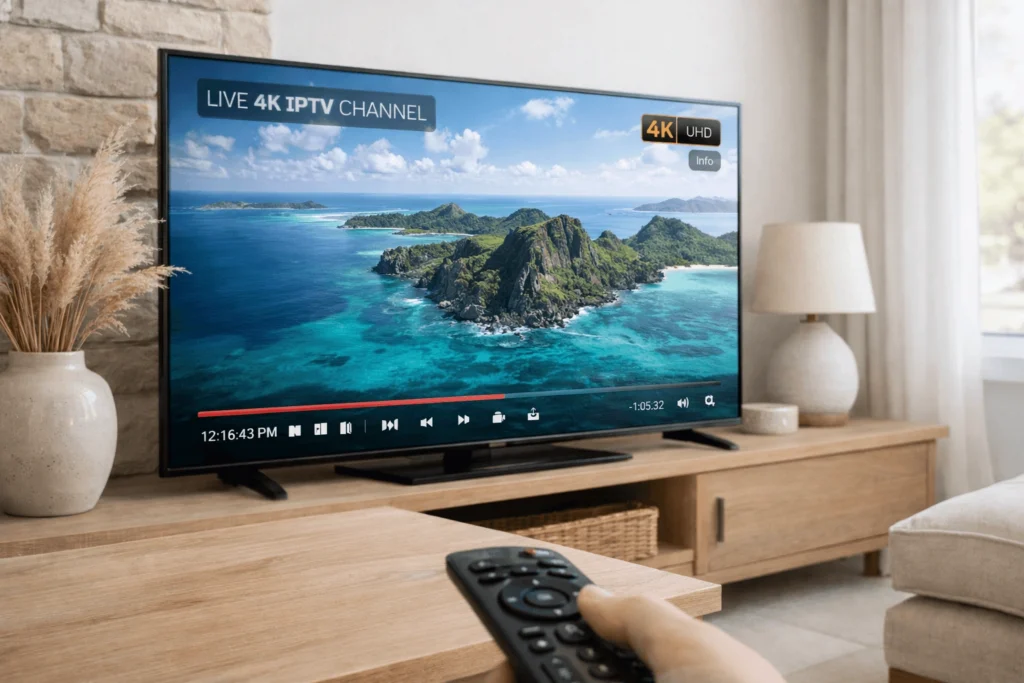
Before configuring either device type, it is worth understanding what genuine 4K IPTV streaming demands from your setup. A minimum internet connection speed of 25 Mbps is required for stable 4K playback, and speeds of 50 Mbps or above are preferable if multiple devices are streaming simultaneously in the same household — a common scenario in Maltese family homes or shared expat accommodation.
Malta’s fibre broadband infrastructure covers most urban and suburban areas, and achieving these speeds is realistic for the majority of households. However, Wi-Fi signal quality can be an additional variable. A wired ethernet connection between your IPTV box and router is strongly recommended for 4K streaming, as wireless connections introduce latency and packet loss that can trigger buffering even when overall speeds appear adequate.
Your television must also support HDMI 2.0 or above and be capable of displaying 4K content natively. Additionally, your IPTV subscription Malta package must include 4K-encoded streams — not all providers offer genuine 4K content, so verifying this before subscribing saves disappointment.
Step-by-Step: Setting Up IPTV on a MAG Box
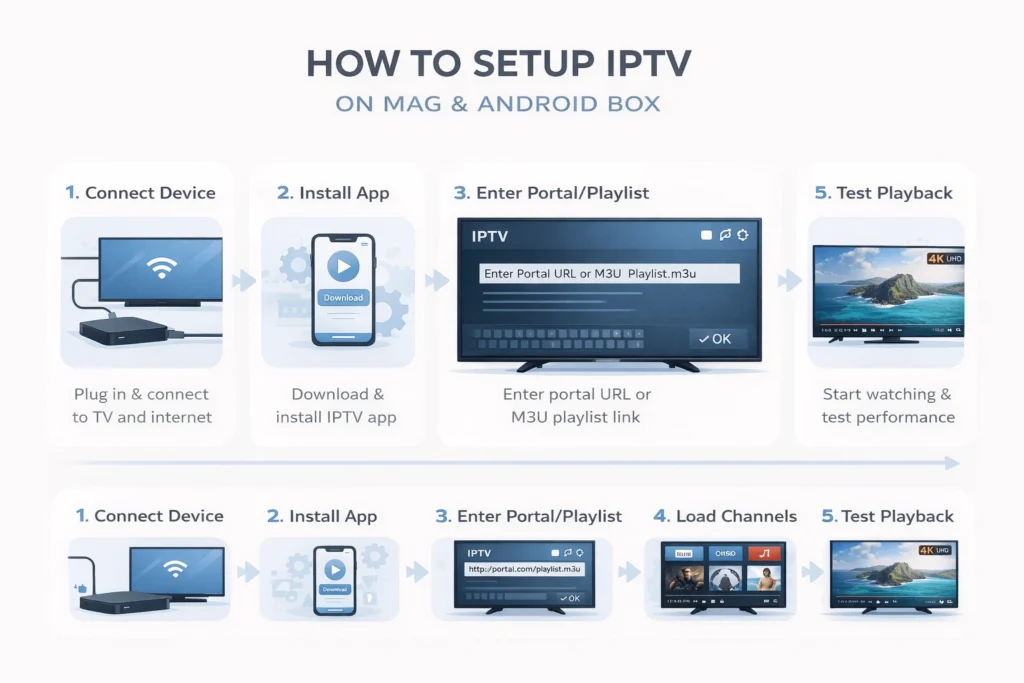
Step 1 — Connect the MAG Box to Your Television and Network
Connect your MAG box to your TV via the supplied HDMI cable and to your router via ethernet for the most stable connection. Power on the device and allow it to boot fully — this typically takes around thirty seconds on most models.
Step 2 — Access the Portal Settings
From the MAG home screen, navigate to Settings > System Settings > Servers > Portals. Here you will find fields labelled Portal 1 Name and Portal 1 URL. Enter the portal URL provided by your IPTV service provider exactly as supplied, paying close attention to capitalisation and punctuation, as even minor errors will prevent the portal from loading.
Step 3 — Register Your MAC Address with Your Provider
MAG boxes use a unique hardware MAC address for authentication rather than username and password credentials. Locate your device’s MAC address under Settings > System Information and provide it to your IPTV provider. The provider then links your subscription to this address, allowing the portal to authenticate automatically each time the device connects.
Step 4 — Reboot and Load the Portal
After saving the portal URL, reboot the MAG box. Upon restart, it will attempt to load the configured portal automatically. If authentication is successful, your channel list will populate and the service will be ready to use. Indeed, most MAG setups are fully operational within minutes of completing this configuration.
Step-by-Step: Setting Up IPTV on an Android Box
Step 1 — Connect and Update the Device
Connect your Android box to your TV via HDMI and to your router via ethernet or Wi-Fi. Power on the device and ensure the Android firmware is up to date before proceeding, as older versions can cause application compatibility issues.
Step 2 — Install Your Preferred IPTV Player
Android boxes support a wide range of IPTV player applications. For users prioritising a polished interface and reliable performance, TiviMate is a consistently well-regarded option available through the Google Play Store. IPTV Smarters Pro is another strong choice, particularly for users new to IPTV box Malta 4K configurations, as its credential entry process is clearly structured. GSE Smart IPTV offers broad playlist format support and suits users managing multiple service subscriptions.
For sideloaded applications not available on the Play Store, the Downloader app can be used to install APK files directly — first enabling installation from unknown sources under Settings > Security.
Step 3 — Enter Your IPTV Credentials
Open your chosen player and navigate to the add playlist or account section. Enter either your M3U URL or Xtream Codes details — server address, username, and password — as provided by your service. The application will load your channel list and Electronic Programme Guide data automatically.
Step 4 — Configure Playback Settings for 4K
Within the player settings, confirm that the video output resolution is set to match your television’s native 4K capability. Some applications allow you to select a preferred stream quality or decoder type — hardware decoding generally performs better for 4K content on Android boxes, reducing processing load and improving playback smoothness.
For locally relevant service information, https://iptvmalta4k.com/ provides reference guidance specifically oriented toward IPTV users in Malta, including context on 4K-compatible service options.
Recommended IPTV Players: A Neutral Overview
Beyond the options mentioned above, a few additional players are worth noting for users comparing their choices. Perfect Player is a lightweight option that performs reliably on lower-specification Android hardware. Kodi, while primarily a media centre application, can be configured for IPTV use through the PVR IPTV Simple Client add-on, though its setup process is more complex than dedicated IPTV players. Furthermore, OTT Navigator has gained attention for its flexible interface and strong EPG management, making it a useful alternative for users who prefer more granular control over their channel organisation.
Common Setup Issues and How to Resolve Them
Portal Not Loading on MAG Box
If the MAG portal fails to load after configuration, verify the URL is entered correctly and that the MAC address has been registered with your provider. Additionally, confirm that the subscription is active — expired credentials are a frequent cause of portal authentication failures.
Buffering During 4K Playback
Buffering in 4K is most often a bandwidth or network consistency issue. Switch to a wired ethernet connection if not already using one, reduce concurrent network usage in your household, and restart your router. If the issue persists across multiple channels and time periods, contact your provider to confirm that 4K streams are being delivered at the appropriate bitrate.
No EPG Data Displayed
Trigger a manual EPG refresh within your application settings. Some IPTV players require a separate EPG URL to be entered alongside the main playlist link — your provider should supply this if applicable.
Optimising Your 4K IPTV Experience in Malta
A few additional measures help sustain reliable 4K streaming over time. Restarting your IPTV box and router weekly clears cached data and refreshes network assignments. Keeping applications and firmware updated ensures compatibility with current streaming standards. Finally, positioning your router centrally within your home — or using a mesh network system for larger properties — minimises dead zones and signal degradation that can affect streaming quality even on wired-adjacent devices.
Regulatory Context for IPTV Users in Malta
Content distribution and broadcasting services in Malta fall under the regulatory framework administered by the Broadcasting Authority of Malta (www.ba-malta.org). Users are encouraged to familiarise themselves with the Authority’s published guidelines regarding audiovisual content licensing, to ensure that any IPTV service accessed operates within the applicable legal framework on the island.
Conclusion
Whether you opt for the focused simplicity of a MAG device or the broader flexibility of an Android box, understanding the setup process for IPTV box Malta 4K configurations puts you in a strong position to enjoy stable, high-quality streaming. Correct configuration, a reliable network connection, and an appropriate IPTV subscription Malta package are the three pillars of a consistently good experience — and each is well within reach for most households across Malta.