
IPTV iOS Malta: How to Set Up and Stream on iPhone and iPad
Introduction
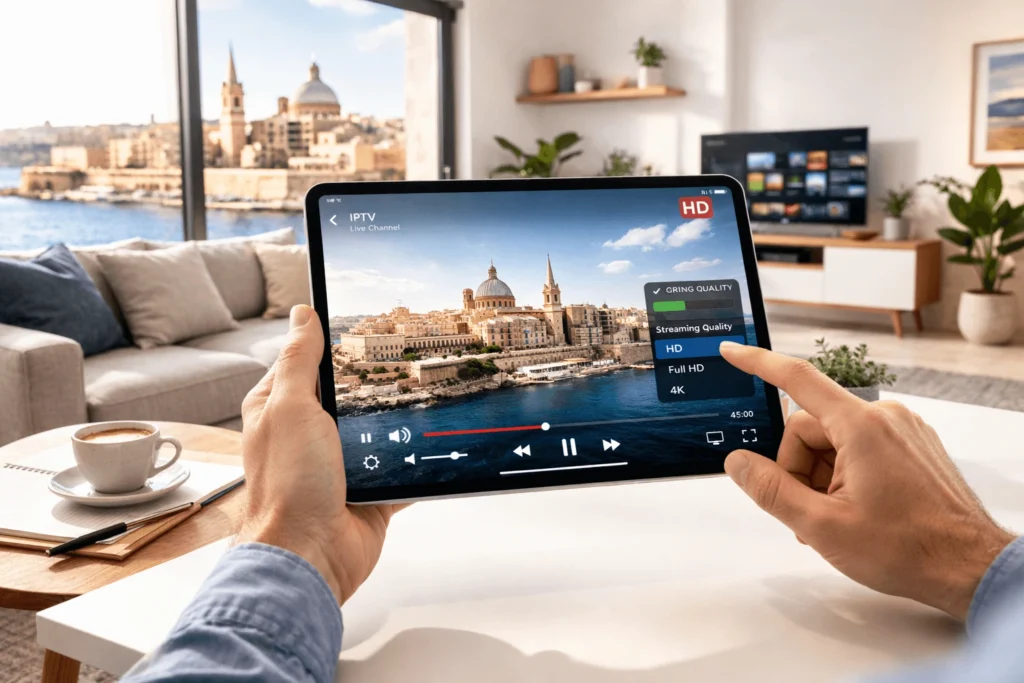
Apple devices occupy a prominent place in the Maltese consumer electronics landscape. iPhones and iPads are widely used across all age groups, and an increasing number of users are exploring how to extend their streaming habits beyond the living room television. Whether commuting between Valletta and Birkirkara, relaxing at a café in St Julian’s, or simply preferring a personal screen to a shared one, setting up IPTV iOS Malta on an iPhone or iPad gives users flexible access to live channels, sports, and international content wherever they have a reliable internet connection.
This guide covers everything you need to know about using IPTV on iOS devices in Malta — from understanding compatibility and selecting the right application to configuring your credentials and troubleshooting common issues.
How IPTV Works on iOS Devices
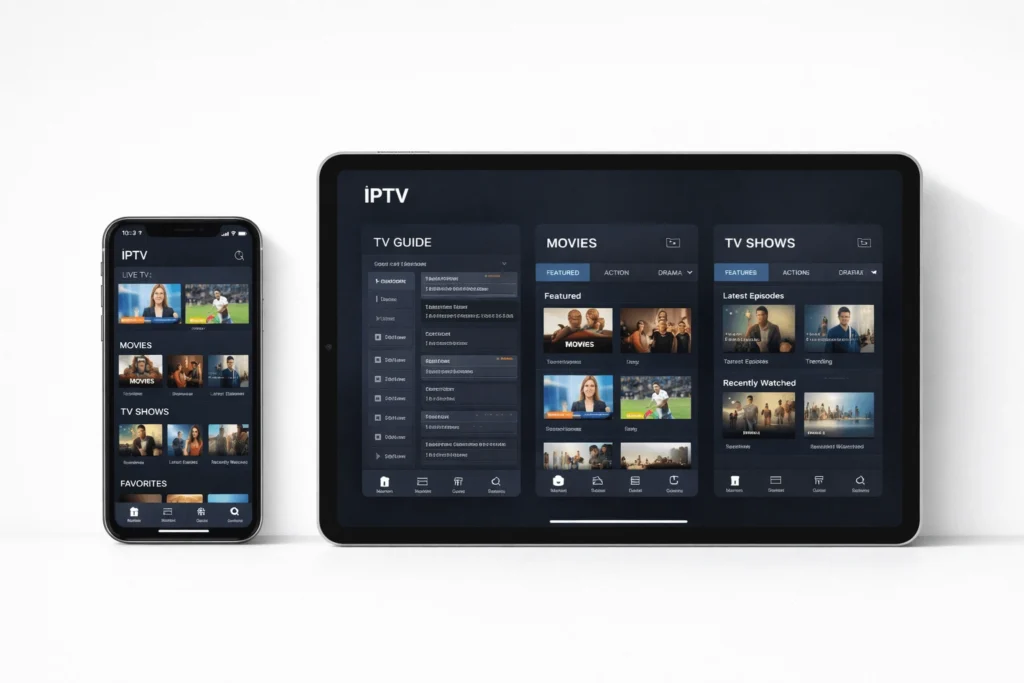
IPTV delivers television content over an internet connection using standard streaming protocols. Rather than receiving a signal through a satellite dish or cable connection, your device connects to a remote server that streams channels and on-demand content in real time. On iOS, this process is handled through dedicated IPTV player applications that accept either an M3U playlist URL or Xtream Codes credentials — the two most common formats used by IPTV service providers.
Apple’s iOS platform does not natively support IPTV in the way that Android allows sideloading of unrestricted applications. However, the App Store does include a number of well-regarded IPTV players that handle M3U and Xtream Codes formats competently. The ecosystem is therefore more curated than Android, but it remains fully functional for the purposes of IPTV streaming.
What You Need Before Getting Started
A Compatible iOS Device and Software Version
Most IPTV applications for iPhone and iPad require iOS 13 or later. Devices running older operating systems may find that current app versions are incompatible or unavailable. Updating to the latest iOS version — which can be done via Settings > General > Software Update — is therefore a sensible first step before proceeding.
Your IPTV Credentials
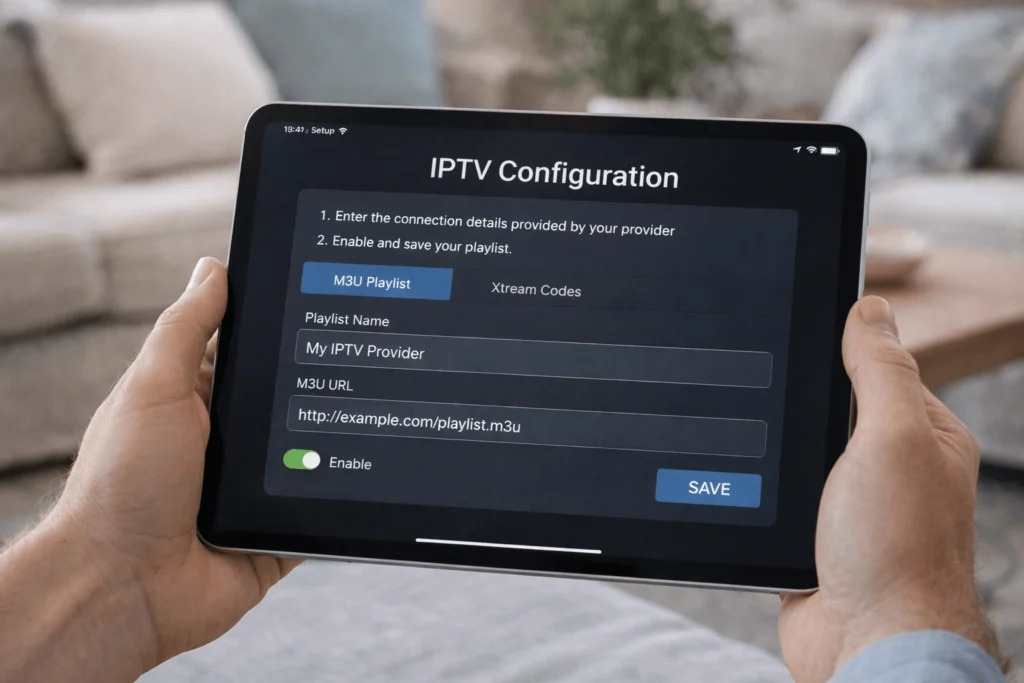
You will need valid credentials from your IPTV provider before any application can be configured. These typically take the form of an M3U URL — a direct link to your channel playlist — or Xtream Codes login details, which consist of a server address, a username, and a password. Some providers supply both formats; having them ready before opening the app saves time during setup.
A Stable Internet Connection
For smooth HD playback on an iPhone or iPad, a minimum connection speed of around 10 Mbps is recommended. If you intend to stream 4K content, 25 Mbps or above is preferable. In Malta, 4G and 5G mobile network coverage is available across most of the island, making mobile IPTV iOS Malta use practical even when away from a home Wi-Fi connection. However, mobile data consumption during live IPTV streaming can be substantial, so users on limited data plans should be mindful of usage, particularly during extended sports viewing sessions.
Top IPTV Player Apps for iPhone and iPad
GSE Smart IPTV
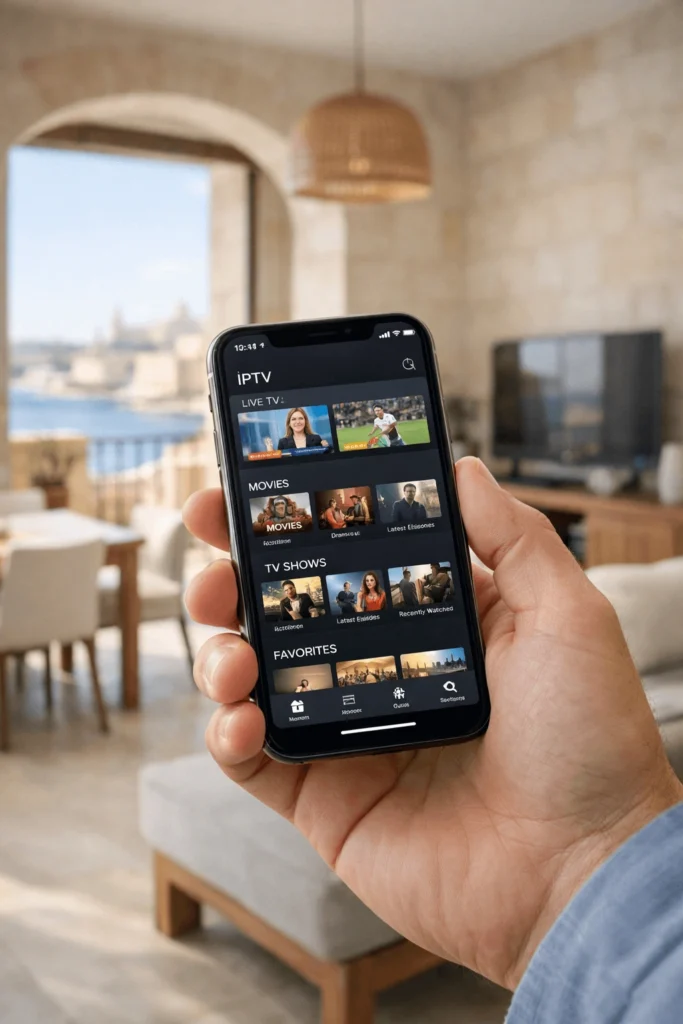
GSE Smart IPTV is one of the most established IPTV players available on the iOS App Store. It supports M3U playlists, Xtream Codes login, and external EPG sources, giving users a comprehensive set of tools for managing their channel list and programme guide. The interface is more technically oriented than some alternatives, which may require a short adjustment period for new users. However, its reliability and broad format support make it a strong choice for experienced IPTV users on iPhone and iPad.
IPTV Smarters Pro
IPTV Smarters Pro offers a visually appealing interface that guides users through the credential entry process clearly. It supports both M3U URLs and Xtream Codes authentication, includes a video-on-demand section, and handles multi-screen panel navigation well. Indeed, many users in Malta find this application to be one of the more intuitive options for first-time iOS IPTV configuration, particularly those transitioning from a television-based IPTV box Malta setup to mobile viewing.
Flex IPTV
Flex IPTV is a well-regarded option specifically designed for Apple devices, including iPhone, iPad, and Apple TV. It supports M3U playlists and offers a clean, minimal interface that integrates comfortably with iOS design conventions. Flex IPTV includes support for AirPlay, which allows users to cast their stream from an iPhone or iPad directly to an Apple TV or AirPlay-compatible smart television — a useful feature for households that want to combine mobile and living room viewing.
OTT Navigator
While OTT Navigator is primarily associated with Android, an iOS-compatible version is available and has gained attention for its flexible EPG management and channel organisation tools. It suits users who manage multiple playlists or require more granular control over their IPTV subscription Malta channel structure.
nPlayer
nPlayer is a versatile media player that, while not exclusively an IPTV application, supports M3U playlist loading and handles a wide range of video codecs. It is a useful alternative for users who encounter playback compatibility issues with dedicated IPTV apps, particularly when dealing with less common stream formats.
Step-by-Step: Configuring IPTV on iPhone or iPad
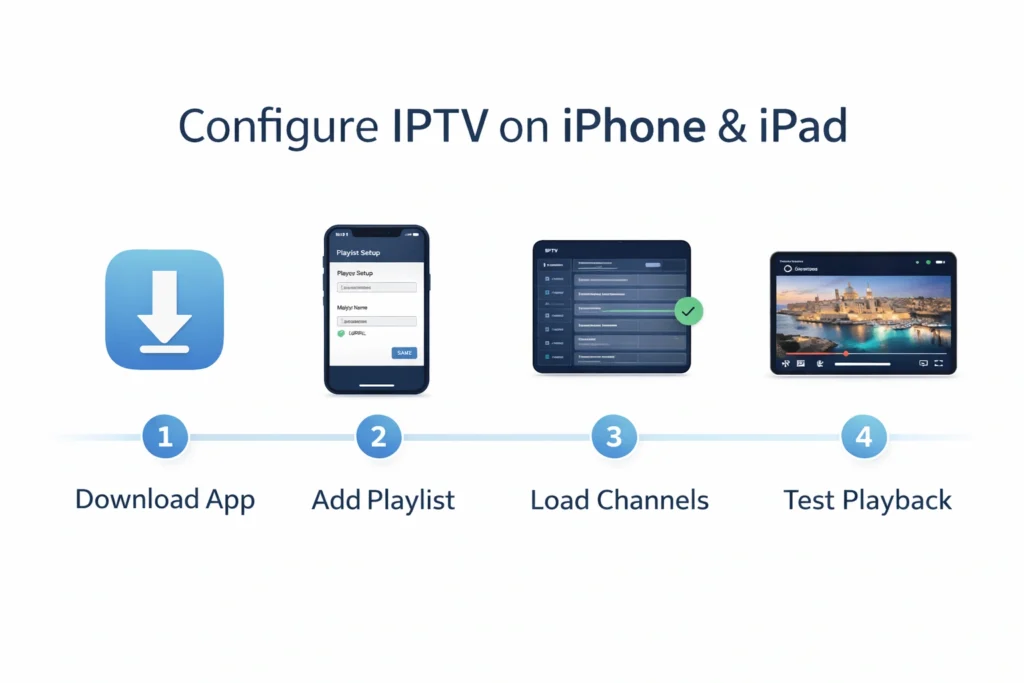
Step 1 — Download Your Chosen Application
Open the App Store on your iPhone or iPad, search for your preferred IPTV player by name, and install it. All applications listed above are available through the standard App Store without requiring any additional configuration of your device.
Step 2 — Open the App and Navigate to Playlist Settings
Launch the application and locate the section for adding a playlist or account. In most IPTV players, this is presented clearly on the initial setup screen or within a settings menu labelled “Add Playlist,” “Add Account,” or similar.
Step 3 — Enter Your M3U URL or Xtream Codes Details
Select the appropriate input method — M3U URL or Xtream Codes — and enter your credentials exactly as provided by your IPTV service. Take care with uppercase and lowercase characters, as credential fields are typically case-sensitive. Once entered, confirm and allow the application to load your channel list.
Step 4 — Load and Verify Your Channel List
After the playlist loads, browse through the available categories to confirm that the channels relevant to your viewing needs are present and functioning. For Malta-based users, this is particularly important when verifying the availability of specific sports channels, Italian-language content, or Arabic and other international broadcasts that form a core part of many IPTV subscription packages on the island.
Step 5 — Configure EPG and Playback Preferences
Within the application settings, configure your Electronic Programme Guide source if one is available from your provider. Additionally, explore playback settings such as buffer size and decoder preferences, as adjusting these can improve stream stability on specific iOS device models.
For additional context on IPTV services available to users in Malta, https://iptvmalta4k.com/ offers locally relevant reference information covering compatible services and configuration guidance.
Common Setup Issues and How to Fix Them
Playlist Fails to Load
If your M3U URL fails to load, first verify that the URL has been entered without additional spaces or line breaks, and that it begins with the correct prefix — typically “http://” or “https://”. Furthermore, confirm with your provider that the subscription is active and that the credentials have not expired.
Video Playback Errors or Blank Screen
Playback errors on iOS can sometimes be resolved by switching the in-app decoder setting. Some IPTV players offer a choice between software and hardware decoding — toggling between these options often resolves compatibility issues with specific stream formats.
Frequent Buffering on Mobile Data
Buffering on a mobile connection is most commonly caused by fluctuating signal strength rather than the IPTV service itself. Moving to an area with stronger 4G or 5G coverage, or switching to a Wi-Fi connection, typically resolves the issue. Additionally, reducing the stream quality setting within the app — where the option is available — lowers bandwidth demand and can significantly reduce buffering on slower connections.
Streaming Stability Tips for Malta Users
A few practical habits improve the overall reliability of IPTV iOS Malta usage. Closing background applications before starting a streaming session frees up device memory and processing capacity. Keeping both iOS and your IPTV application updated ensures access to the latest performance improvements and codec support. Finally, for home Wi-Fi streaming on iPad, positioning the device closer to the router or using a Wi-Fi extender in larger properties reduces signal-related instability.
Regulatory Context for IPTV in Malta
Audiovisual content distribution in Malta is regulated within the framework overseen by the Broadcasting Authority of Malta (www.ba-malta.org). While using an iPhone or iPad to access IPTV content is entirely lawful as a technology, users are encouraged to review the Broadcasting Authority’s published guidance to understand the licensing standards that apply to content services accessed on the island.
Conclusion
Configuring IPTV iOS Malta on an iPhone or iPad is a straightforward process once the appropriate application is selected and credentials are correctly entered. The iOS App Store provides several capable IPTV players that cater to different levels of technical familiarity, from beginner-friendly interfaces to more advanced multi-playlist management tools. With a stable connection and correctly configured credentials, iPhone and iPad users in Malta can access a comprehensive range of live and on-demand content across any location on the island.