
How to Install IPTV on Smart TV in Malta: Samsung, LG and Android TV Guide
Introduction
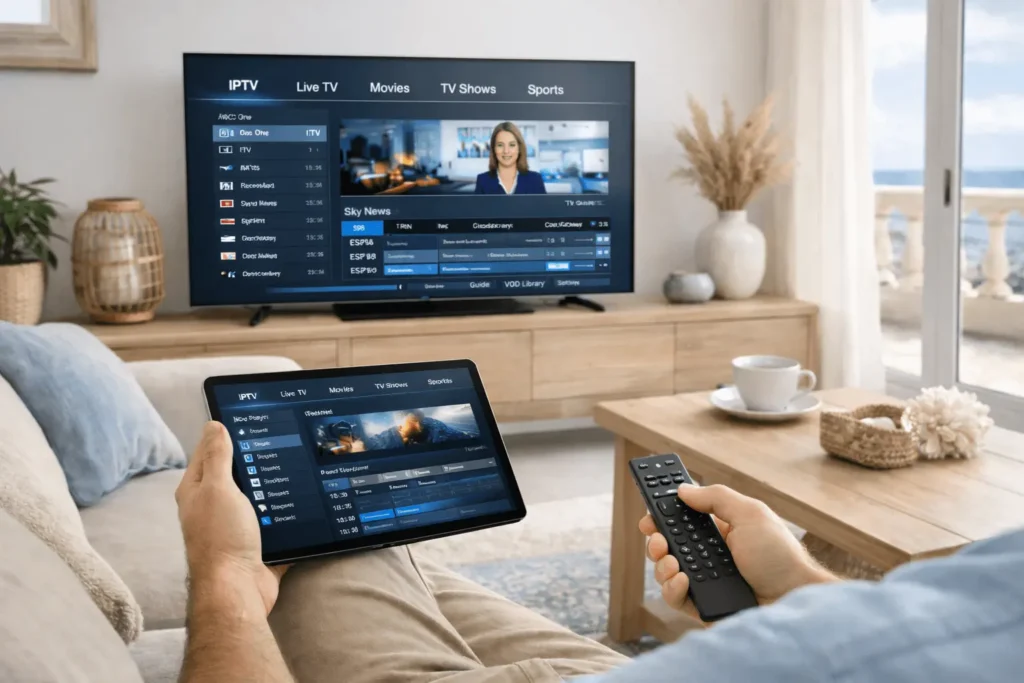
Smart televisions have become the primary viewing device in a growing number of Maltese households. From apartments in Sliema to family homes in Rabat, residents are increasingly moving away from traditional cable or satellite setups in favour of internet-based streaming. Setting up IPTV Smart TV Malta correctly is therefore one of the most practical steps a user can take to access a broader range of live channels, international content, and on-demand programming directly through their existing television set.
This guide covers the installation process across the three most widely used smart TV platforms in Malta — Samsung Tizen, LG webOS, and Android TV — along with recommended player applications, common setup issues, and tips for maintaining a stable stream.
What You Need Before Getting Started
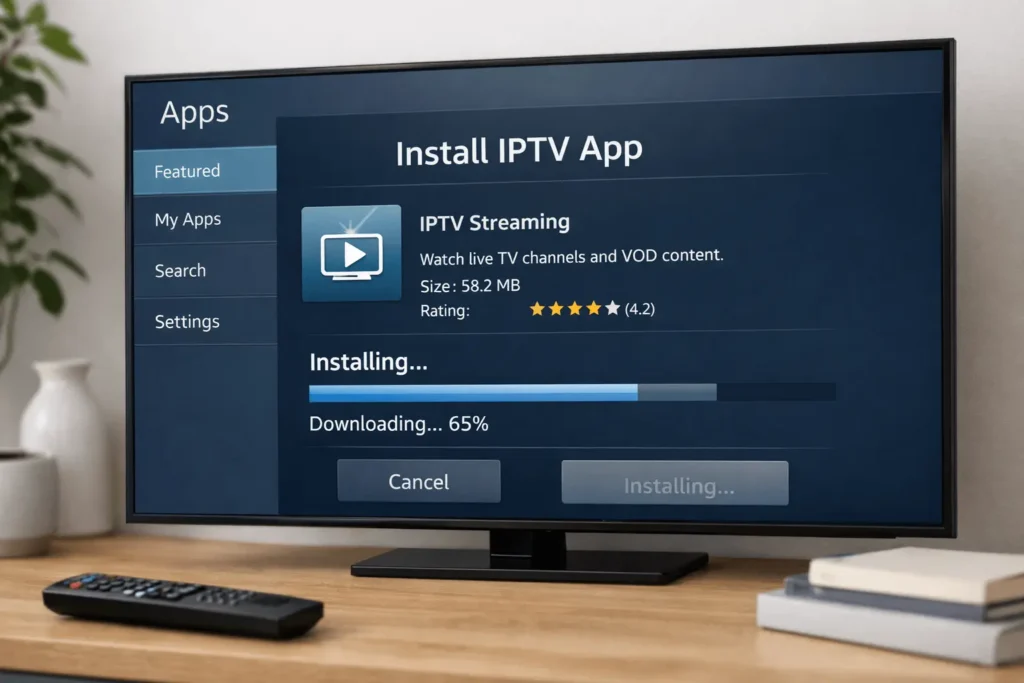
Before installing any IPTV application, a few baseline requirements should be in place. A stable broadband connection is essential — for HD streaming, a minimum of 10 Mbps is generally recommended, while 4K content requires 25 Mbps or above. In Malta, fibre broadband is widely available through local providers, and most urban households should comfortably meet these thresholds.
You will also need valid IPTV credentials from a service provider. These typically come in one of two formats: an M3U playlist URL or Xtream Codes login details (server address, username, and password). Additionally, having your home Wi-Fi password to hand is useful if the TV is not already connected to your network, though a wired ethernet connection is always preferable for streaming stability.
Installing IPTV on a Samsung Smart TV
Understanding Samsung’s Tizen Platform
Samsung Smart TVs run on the Tizen operating system, which does not natively support third-party IPTV applications through its standard app store. However, there are two practical approaches available to Malta users with a Samsung set.
Method 1 — Using the Smart IPTV Application
Smart IPTV (SIPTV) is one of the most established applications compatible with Samsung Tizen TVs. To install it, navigate to the Samsung App Store from your home screen, search for “Smart IPTV,” and install the application. Once launched, the app displays a unique MAC address for your device. You then visit the SIPTV website from a computer or phone, enter this MAC address, and upload your M3U playlist URL. The playlist is linked to your TV within minutes.
However, note that Smart IPTV carries a one-time activation fee after a trial period, which is a relatively minor cost compared to ongoing IPTV subscription Malta expenses.
Method 2 — Screen Mirroring or Casting
An alternative approach involves casting from a mobile device using Samsung’s built-in screen mirroring feature. While functional, this method is generally less stable than a native app installation and is therefore better suited as a temporary solution.
Installing IPTV on an LG Smart TV
Understanding LG’s webOS Platform
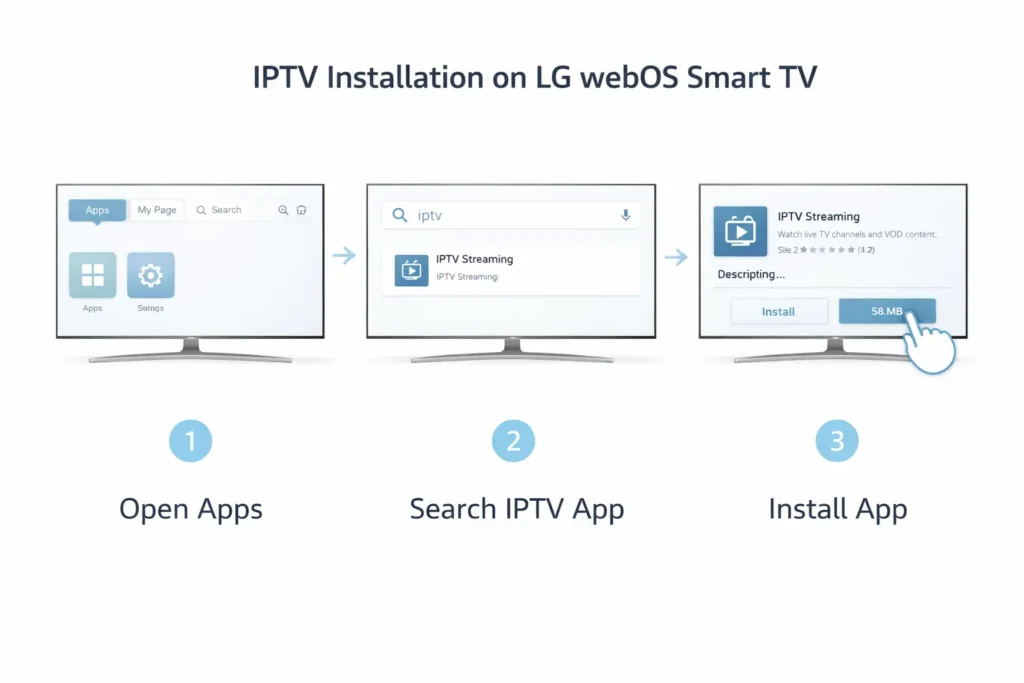
LG Smart TVs operate on webOS, which similarly restricts installation to its official content store. The recommended application for IPTV Smart TV Malta users with an LG device is SS IPTV, which is freely available through the LG Content Store.
Step-by-Step Installation on LG
Open the LG Content Store from the home screen and use the search function to locate SS IPTV. Install the application and launch it. Within the app, navigate to the playlist import section and enter your M3U URL or Xtream Codes credentials. SS IPTV supports multiple playlist formats and includes an Electronic Programme Guide (EPG) integration, which helps users navigate live schedules more easily.
Indeed, LG webOS users in Malta often find SS IPTV to be one of the more reliable options due to its straightforward interface and regular updates. Furthermore, the application supports multiple user profiles, which is practical for multi-device or multi-user households — a common scenario among Maltese families and expat communities who require access to different regional channel packages simultaneously.
Installing IPTV on Android TV
Why Android TV Offers the Most Flexibility
Android TV — found on Sony Bravia sets, Philips Android TVs, Hisense models, and standalone devices such as the Nvidia Shield or Mi Box — offers the broadest range of IPTV application options. Because Android TV runs a full version of the Google Play Store, users can install dedicated IPTV players directly without workarounds.
Recommended Applications for Android TV
Several well-regarded IPTV players are available on the Google Play Store and are compatible with Android TV:
TiviMate is widely considered one of the most polished IPTV players available for Android TV. It supports M3U playlists, Xtream Codes, and offers a well-structured EPG. A free version is available, with additional features unlocked through a reasonably priced premium tier.
IPTV Smarters Pro is another popular option that presents a user-friendly interface suitable for users who are new to IPTV. It supports both M3U and Xtream Codes login formats and includes catch-up TV functionality where offered by the provider.
GSE Smart IPTV provides strong multi-format support and is particularly useful for users managing multiple playlists from different IPTV services.
Installation Steps for Android TV
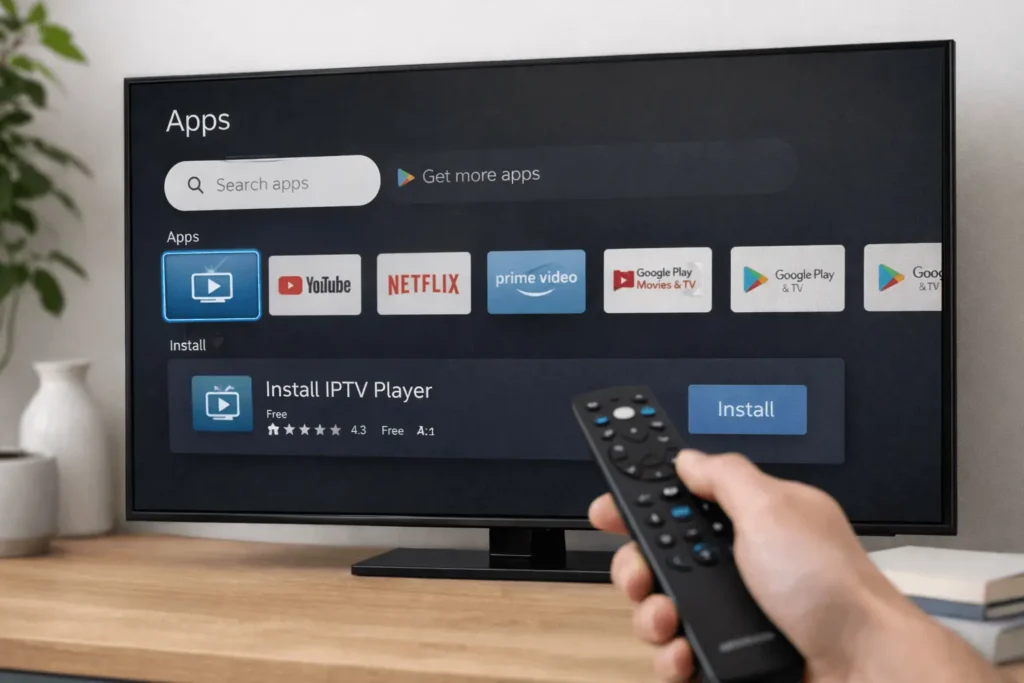
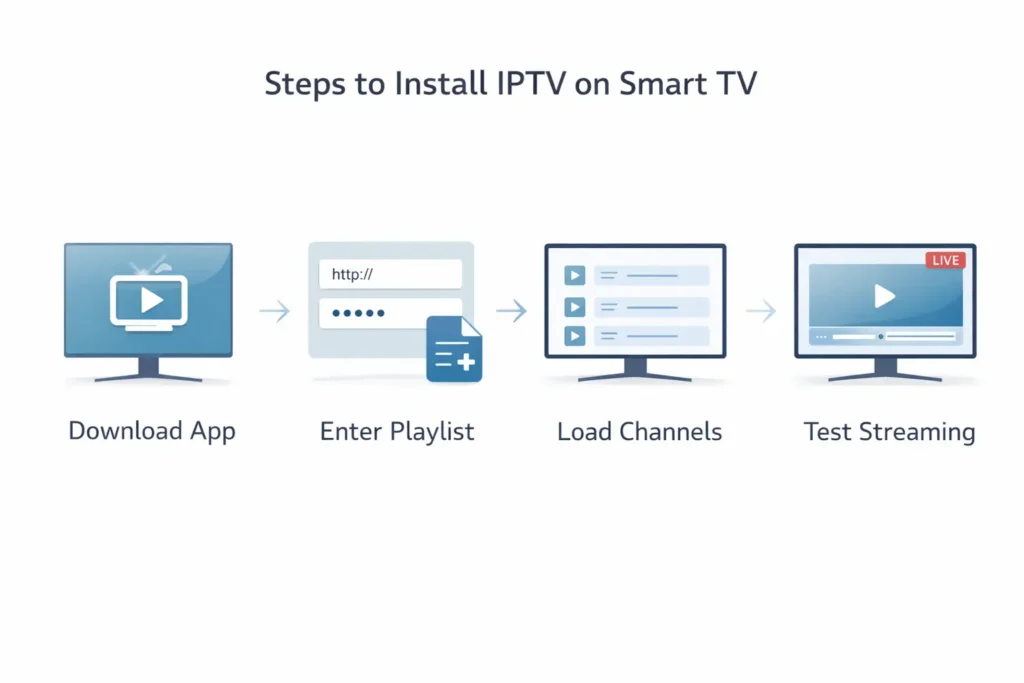
Open the Google Play Store on your Android TV, search for your preferred IPTV player, and install it. Upon launching the application, select the option to add a playlist and enter your M3U URL or Xtream Codes credentials as provided by your IPTV service. Channel lists and EPG data will populate automatically, after which you can organise favourites and adjust playback settings to suit your preferences.
For users seeking locally contextualised guidance on IPTV services available in Malta, https://iptvmalta4k.com/ provides relevant reference information on compatible services and setup options.
Common Setup Problems and How to Resolve Them
Channels Not Loading or Buffering Frequently
Buffering is one of the most commonly reported issues among new IPTV users. In many cases, the cause is not the IPTV service itself but the network connection. Switching from Wi-Fi to a wired ethernet connection typically resolves instability, particularly on older Smart TV models with weaker wireless receivers.
If buffering persists after switching to ethernet, the issue may relate to server load on the provider’s end. Testing at different times of day — particularly avoiding peak sports broadcast hours — can help isolate whether the problem is consistent or intermittent.
Playlist Not Recognised or Failing to Load
This issue most commonly arises from an incorrectly entered M3U URL or expired credentials. Double-check the URL for typos, ensure there are no additional spaces, and confirm with your provider that the subscription remains active. Additionally, some IPTV players require the URL to begin with “http://” or “https://” explicitly — omitting this prefix can cause loading failures.
EPG Not Displaying Correctly
Electronic Programme Guide data is loaded separately from the channel list and may require a manual refresh within the application settings. Furthermore, EPG accuracy depends on the provider maintaining up-to-date guide data, which can occasionally lag behind real-time schedules during major broadcast events.
Streaming Stability Tips for Malta Users
A number of practical steps can improve the overall IPTV experience for users in Malta. Positioning your router closer to the TV, or using a powerline ethernet adapter, reduces reliance on wireless signals. Restarting your router periodically also clears cached data and can improve connection consistency.
For households using an IPTV box Malta configuration alongside a Smart TV, ensuring the box firmware is up to date reduces compatibility issues with newer application versions. Finally, closing background applications on Android TV frees up memory and processing resources, which directly benefits streaming performance.
Understanding the Regulatory Environment
Broadcasting and audiovisual media services in Malta operate within a framework overseen by the Broadcasting Authority of Malta (www.ba-malta.org). While IPTV technology itself is a legitimate method of content delivery, users are encouraged to ensure that any service they subscribe to operates within applicable licensing frameworks. Reviewing the Broadcasting Authority’s published guidelines provides useful context for understanding content distribution standards in Malta.
Conclusion
Installing IPTV Smart TV Malta across Samsung, LG, and Android TV platforms is a straightforward process once the correct applications and credentials are in place. Each platform has its own preferred method and compatible applications, but the underlying process — connecting a playlist to a player — remains consistent. Taking the time to configure your setup correctly, and understanding the technical requirements involved, leads to a significantly more reliable and enjoyable streaming experience.